Smart Note Taking App: AI Transforms Your Knowledge in 2026
Ditch digital clutter with the top smart note taking app of 2026. AI captures, summarizes, and finds notes, building your personal knowledge base.
On this page
- The end of digital note hoarding
- Why old systems stop working
- What makes a note taking app smart
- From filing cabinet to research assistant
- Why enrichment matters more than storage
- Core features that power smart recall
- Capture without friction
- Enrichment that removes manual work
- Recall tools that answer instead of just retrieving
- Real-world workflows for learners, writers, and researchers
- The student with mixed-source coursework
- The writer building patterns from scraps
- The researcher triaging a heavy reading queue
- How Sensefold turns information chaos into recall
- One library instead of five disconnected buckets
- What Sensefold does automatically on save
- The recall layer
- Choosing your app and migrating with confidence
- What to check before you commit
- How to migrate without making a mess
- Frequently asked questions about smart note taking
- How does a smart note taking app handle my privacy?
- Does Sensefold train AI models on my notes?
- Can a smart note taking app really connect ideas across formats?
- What's the difference between AI summaries I can trust and ones I can't?
You probably already have a note-taking system. It just doesn't work very well.
Your reading queue lives in open browser tabs. Your "important" ideas are buried in Apple Notes, Google Keep, Notion, a screenshot folder, a few starred emails, and random PDFs you meant to revisit. You saved the material, but when you need a quote, a takeaway, or the source behind a claim, recall breaks down.
That's the real problem a smart note taking app solves. Not storage. Recall. Not collecting more. Turning what you collect into something you can use.
The end of digital note hoarding
A smart note taking app fixes hoarding by reading what you save and making it findable later, instead of leaving you to sort, tag, and remember everything yourself. The job shifts from "store this" to "help me find and use this."
Digital hoarding looks productive from the outside. You clip articles, save videos, snap photos of whiteboards, and tell yourself you'll organize it later. Later rarely comes. The result is a personal archive that behaves like a junk drawer: you know something useful is in there, but you can't surface it when it matters.
Classic note apps made this worse. They handed you folders, tags, and a search box, then left you the full burden of sorting, naming, linking, and remembering. That's manageable when your notes are short and few. It breaks when your inputs include videos, scans, screenshots, web pages, documents, and AI chats.
You don't need a better place to dump information. You need a system that helps you recover meaning from it.
Why old systems stop working
A basic notes app works fine for:
- Short reminders: grocery lists, quick phone numbers, rough outlines
- Single-format notes: plain text from one device
- Low retrieval demands: information you either use today or forget tomorrow
It starts failing when your real job is different:
- Research-heavy work: you need to compare sources, not just save them
- Creative work: you need patterns, themes, and reusable raw material
- Ongoing learning: you need your notes to stay useful long after capture day
A smart note taking app matters because it changes the job from "store this" to "help me think with this."
What makes a note taking app smart
A smart note taking app reads what you save, extracts structure from it, and gives you better ways to ask for it later. A traditional notes app is a filing cabinet you have to organize; a smart one behaves like a research assistant that organizes for you.
From filing cabinet to research assistant
The filing-cabinet model assumes two things that usually aren't true. First, it assumes you'll organize consistently. You won't — when you're moving fast, you save first and promise yourself structure later. Second, it assumes you'll remember how you thought about an item when you saved it. You usually don't.
That's where the "smart" part earns its name. A good app takes a messy input — a scanned page, a screenshot, a long article, a YouTube link — and makes it usable without demanding a cleanup session from you. It reads the content, pulls out the text, writes a short summary, and indexes everything so you can find it by meaning later.
Why enrichment matters more than storage
Storage is cheap. Attention isn't. What separates a smart tool from a basic one is enrichment — the useful layers the app adds to what you save:
| Type of enrichment | What it does | Why it matters |
|---|---|---|
| OCR | Pulls text from scans and image-based PDFs | Unlocks documents that were just pixels before |
| Summarization | Distills long material into a few bullets | Helps you triage before reading deeply |
| Auto-tagging | Suggests categories or themes | Reduces manual sorting |
| Semantic retrieval | Finds by meaning, not exact wording | Helps when you remember the idea but not the phrase |
| Source-aware chat | Answers questions and points back to the saved item | Lets you verify instead of trust blindly |
Many apps claim to be smart when they only bolt one AI button onto a normal notebook. If the app still depends on you to remember exact keywords, build clean folders, and manually connect related notes, it's still passive storage with a fresh coat of paint.
Practical rule: If an app saves your material but doesn't improve retrieval, it's a prettier archive, not a smarter system.
Core features that power smart recall
Smart recall isn't one feature — it's a chain. Capture has to be easy, enrichment has to happen automatically on save, and recall has to feel faster than hunting by hand. Break any link and the system stops being used.
Capture without friction
Most note systems fail at the first step: they make capture too deliberate. If saving a source means opening the app, choosing a folder, naming the note, pasting the link, and tagging it, you'll skip the system when you're busy. The best tools remove that friction with multiple entry points:
- Share sheet capture: save directly from a browser, PDF viewer, or social app on your phone
- Drag and paste: drop a file or paste a link on the web without leaving what you're doing
- File support: PDFs, images, screenshots, and docs should all be valid inputs
- Links to long media: paste a YouTube URL and let the app pull the video and its captions
Fragmentation kills recall. If web links live in one app, PDFs in another, and snapshots in your camera roll, no search layer can help much.
Enrichment that removes manual work
Once material is inside the app, the system should do the first pass of organization for you — automatically, on save.
OCR is the most underrated feature here. A surprising amount of information gets trapped in screenshots, photographed slides, and scanned PDFs. Without OCR those are visual dead ends; with it they become searchable. The key detail to check: does OCR run automatically on ingest, or are you expected to copy text out yourself? A smart app handles it for you. If you work with dense documents, it also helps to know how to summarize a PDF effectively so you can separate skimming from real analysis.
Summaries do a different job: they help you decide whether to return to a source, pull a quote, or skip it. If you regularly face long reports, summary-on-save is a serious quality-of-life win. And tags matter most when they're generated for you — manual tagging sounds elegant and turns into unpaid clerical work in practice.
Here's what usually works and what doesn't:
- Works well: automatic first-pass tags you can edit if needed
- Works well: summaries attached to the original source, not floating free
- Works well: extracted text feeding search across the whole library
- Doesn't work: forcing users to build perfect folder trees
- Doesn't work: requiring elaborate naming conventions to find notes later
Recall tools that answer instead of just retrieving
A search box is table stakes. Smart recall goes further: it searches across titles, full text, extracted (OCR'd) text, summaries, and tags together, then adds a chat layer that answers questions from your saved library and points back to the source item.
That solves a common failure mode — you remember the concept, not the filename. You recall that one article had a useful framing, or that a video made a counterargument, but not the wording. Semantic search and source-aware chat are built for exactly that gap.
Good recall feels less like searching a folder and more like asking a prepared assistant: "What did I save about this, and where did it come from?"
Real-world workflows for learners, writers, and researchers
Features sound good on product pages. Workflows reveal whether the app is actually useful.
The student with mixed-source coursework
A student writing a thesis rarely works from one format: journal PDFs, lecture slides, YouTube explainers, scanned book pages, quick notes from office hours. In a basic app those inputs stay separate; in a smart one they become a single searchable study layer.
The student saves articles and slides as they appear, then uses summaries to decide what deserves a deep read. OCR makes photographed handouts retrievable. When exam time comes, they aren't trying to remember which app held which source. That workflow gets stronger when video is part of the library instead of a disconnected tab habit — see how to summarize a YouTube video for study and research when you need to compare spoken explanations against written sources.
The writer building patterns from scraps
Writers gather fragments, not neat sequences: a line from an interview, a screenshot from social media, a paragraph from a long article, a half-formed thought typed while walking. Most apps store these as isolated bits — which is why many writers have huge archives and still feel blank at draft time.
A smart note taking app helps by surfacing clusters. Several saved pieces start pointing at the same theme. Auto-tagging keeps you from holding an editorial taxonomy in your head, and search-by-idea helps when you know the angle but not the source title.
The researcher triaging a heavy reading queue
Researchers don't need more storage; they need faster judgment. A good workflow starts with triage: save the paper, read the summary, scan the extracted text, then sort it into "read fully," "quote later," or "probably not." That alone cuts a lot of wasted time.
The next step is synthesis. Related studies often use different language for the same idea, and a passive archive won't help. A smarter one connects overlapping concepts across PDFs, notes, and transcripts — and keeps the source attached to the summary, so the citation trail survives. For this group the advantage isn't speed for its own sake; it's preserving context.
How Sensefold turns information chaos into recall
Sensefold is built around one job: capture scattered sources, enrich them automatically, and let you ask your own library questions later. The rest of this section sticks to what Sensefold actually ships today — and flags what's still on the roadmap.
One library instead of five disconnected buckets
Sensefold holds links, PDFs, images, screenshots, and notes in one private hub instead of scattering them across bookmarks, photo albums, and note apps. That matters because most retrieval problems start at capture, long before search.
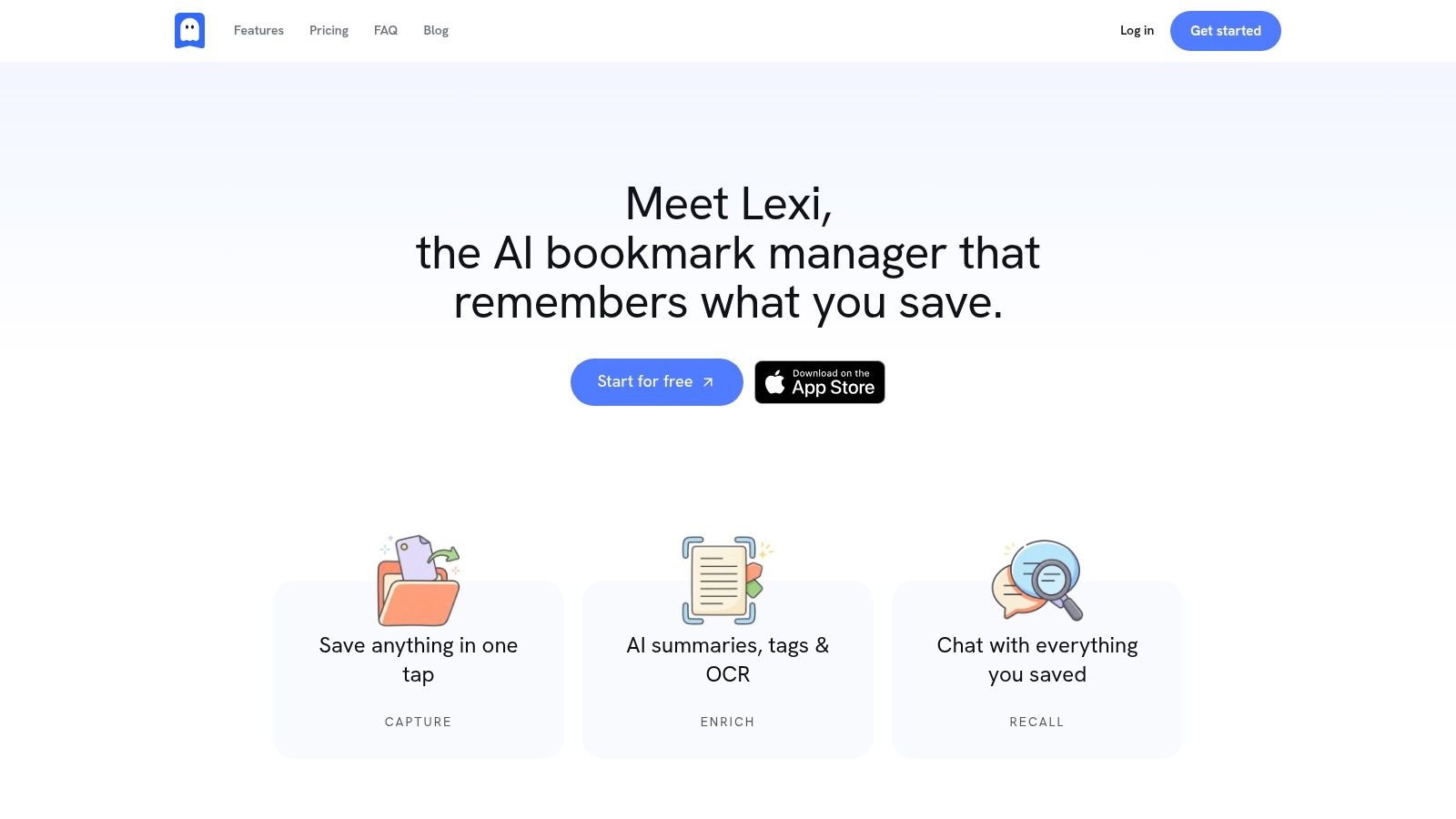
Capture has two entry points today: the iOS share sheet for saving from your phone, and web drag-and-paste for dropping files or links in the browser. Paste a YouTube URL and Sensefold pulls the video and its captions in. Those sound like small conveniences, but they decide whether a system becomes default behavior or a side project.
What Sensefold does automatically on save
When you save a PDF, Sensefold runs OCR on scanned and image-based pages, splits the document into page-aware chunks, and writes a 3–5 bullet summary plus a couple of tags — no prompt or cleanup from you. The original stays preserved and linked, which matters: a summary is only useful when you can still inspect the source behind it.
A few honest limits worth knowing up front: PDF ingest is capped at 10 MB and 200 pages, and the auto-summary reads the first portion of a long document rather than every page. It's built for articles, papers, reports, and slide decks — not 1,000-page books.
The recall layer
This is the part that separates Sensefold from a prettier archive:
- Cross-library search spans titles, summaries, tags, and full extracted text — keyword and semantic together, so you can find an item by what it meant.
- Library-wide chat lets you ask a question across everything you've saved and get one answer drawn from across your sources — or pull a specific note into the conversation when you want to focus on it.
- Cited answers: chat points back to the saved items it drew from, so you can open the source and check the passage yourself.
- YouTube seek: when a saved video is the source, Sensefold's timestamps are real links — tap one and the player jumps to that moment.
A couple of things are still on the roadmap, not live today: jumping straight to the exact page of a PDF from a citation (the page data exists, but the UI doesn't link it yet), and saved, auto-applying summary templates. Sensefold cites the source item, not yet the source page — worth knowing if page-level precision is your bar.
Choosing your app and migrating with confidence
The fix for switching anxiety is simple: judge a smart note taking app on a few hard criteria before you commit, then migrate in phases instead of all at once.
What to check before you commit
- Capture coverage: can it save links, PDFs, images, screenshots, and notes from the devices you actually use?
- Search depth: does search cover full text, extracted text, summaries, and tags — or only note titles?
- AI quality: does the intelligence reduce work, or just generate generic summaries you won't trust?
- Privacy stance: is your library private, and does the company disclose which services process your content?
- Export options: can you leave with usable formats if your needs change?
- Platform fit: web and mobile both matter for daily use
If you're comparing personal-knowledge tools with read-later behavior, this guide to the best read it later app options highlights a common trap: many apps are good at saving content but weak at helping you reuse it.
How to migrate without making a mess
Don't start by importing everything. Move your active material first — current reading list, recent project notes, the references you revisit — and let the new system prove itself on live work before you shovel in the archive.
- Pick one active project and use the new app for real work immediately.
- Import recent sources only — don't drag years of dead clutter along.
- Test export early so you know you can get your data back out.
- Keep the old system read-only for a while to lower stress and avoid duplicate upkeep.
The right app should make you feel less trapped, not more committed.
Frequently asked questions about smart note taking
How does a smart note taking app handle my privacy?
A smart note taking app sees more than typed notes — it processes PDFs, screenshots, and web pages, often by sending them to third-party AI services for OCR and summarization. The trustworthy posture is disclosure: a vendor should publicly name the services that touch your content. Sensefold lists its processors, including LlamaParse and Gemini, on its subprocessors page so you can see exactly what's in the pipeline before you commit.
Does Sensefold train AI models on my notes?
Sensefold's privacy and subprocessors pages are the source of truth on data handling — check them for the current, specific terms rather than relying on a blog's summary. As a general rule when evaluating any tool, look for plain answers on three things: which services process your content, whether your library is private, and whether you can export your notes and source files in a reusable format.
Can a smart note taking app really connect ideas across formats?
Yes — if it's built for recall rather than storage. The working stack is OCR for scans and image-based PDFs, full-text indexing for documents, semantic search for concept-level retrieval, and source-aware chat for asking questions against your own library. Together those let a tool surface a quote from a PDF, a point from a saved article, and a note you wrote last month in one answer.
What's the difference between AI summaries I can trust and ones I can't?
Trustworthy summaries keep receipts. The weak version produces polished text you can't verify and won't trust; the strong version stays linked to the original source, so you can trace a claim back, inspect the passage, and decide whether the connection is real. That traceability is the line between passive note-taking and active knowledge building.
If your current setup is tabs, screenshots, and saved links with no real recall layer, Sensefold is worth a try. It's built for people who want one private place to capture sources, summarize them automatically, search across everything, and ask their own library better questions.