How to Summarize a PDF: A Smart Guide for 2026
Learn how to summarize a PDF efficiently. Our guide covers manual methods, OCR tools, and AI summarizers with tips on privacy, prompting, and verification.
On this page
You have a PDF open in one tab, your notes in another, and a deadline that doesn't care how dense the document is. It might be a research paper, a board report, a technical manual, or a scanned packet someone emailed without context. You don't need the whole thing. You need the parts that matter, fast.
People rarely fail because summarizing is impossible. They fail because they pick the wrong method, skip file prep, or ask an AI tool for "a summary" and hope for the best — which usually produces something polished, vague, and not very useful.
A better workflow starts with triage. What kind of PDF is this? Do you need deep understanding or a quick brief? Is the text selectable, or is it really just a stack of images? Are there privacy constraints that rule out online tools? Once you answer those, the rest gets easier. The reliable version has four parts: pick the method, prepare the file, generate the summary with clear instructions, then verify and reshape it for your actual use.
Pick the method before you summarize
Choose the path before you touch the content. The wrong method wastes more time than the reading itself.
- Manual is still right for short, high-stakes documents — contracts, reviewer comments, policy revisions, anything where wording matters. It's slow, but it preserves nuance and helps you internalize the text. If your next step is to argue from the PDF or make a decision with consequences, manual beats automation.
- Software (OCR utilities, extractive summarizers) sits in the middle. It rarely produces elegant prose, but it's how you turn a scanned or messy PDF into workable text.
- AI is the strongest option for long, text-heavy documents when you want speed plus structure: executive briefs, topic-specific summaries, first-draft notes. The payoff is biggest when the document is too long to read fully but too important to ignore.
| Method | Best for | Speed | Accuracy control | Key benefit |
|---|---|---|---|---|
| Manual | Short, critical documents | Slow | High | Best nuance retention |
| Software | Scanned PDFs, simple extraction | Medium | Medium | Makes inaccessible text usable |
| AI | Long, complex text-based PDFs | Fast | Medium–high with good prompts | Produces structured drafts quickly |
A simple rule: if precision matters most, start manual. If accessibility is the problem, start with software and OCR. If volume is the problem, start with AI — then verify.
Summarize for a purpose, not for completeness. A summary for exam prep, an executive briefing, and a fact-extraction pass are three different outputs. Define which one you want before you upload, or even a strong tool drifts into generic abstraction.
Prepare the file
The file itself decides how clean your summary can be. Plenty of bad summaries start with a PDF the tool never properly read.
Run a quick preflight. Try selecting a sentence with your cursor. If you can highlight text, the PDF has a machine-readable text layer. If you can't, it's image-based and needs OCR before any summarizer can do real work. Then watch for the usual blockers:
- Scanned pages need OCR first, or headings and tables vanish into an image layer.
- Password protection stops some tools from ingesting the file at all.
- Broken reading order — multi-column layouts, footnotes, sidebars — confuses extraction.
- Huge appendices that don't matter add noise; drop them from scope.
For very long PDFs, don't paste the whole thing in and ask for one neat answer — that invites omissions. The dependable approach is layered: split by chapter or section, summarize each part, then condense those summaries into a higher-level one, keeping page references or section labels attached as you go. (AWS describes this hierarchical, chunk-then-condense pattern for documents that exceed a model's context window.)
One note if you use an integrated tool like Sensefold rather than a bare chatbot: most of this prep is automatic. Scanned pages are OCR'd on ingest, and long documents are split into page-aware chunks for you — so "preflight" mostly means knowing your tool's limits (file size, page count) rather than hand-cleaning the file.
Prompt for the summary you actually need
"Summarize this PDF" is almost always too vague — the model has to guess the audience, the depth, and what matters. Tell it four things instead:
- Audience: non-expert reader, executive, student, reviewer, legal team
- Objective: understand the argument, extract risks, pull financial details, prep study notes
- Format: bullets, memo, table, paragraph, Q&A
- Scope: the whole PDF, selected pages, only methods and results, only sections mentioning one topic
A stronger prompt sounds like this:
Summarize this PDF for a non-expert audience. Focus on the main claim, supporting evidence, limitations, and real-world implications. Keep it under six bullets and flag anything uncertain.
Different document types reward different asks:
- Research papers: "Extract the research question, method, key findings, limitations, and any stated future work."
- Business reports: "Summarize strategic priorities, risks, financial references, and operational changes."
- Technical manuals: "List setup steps, warnings, prerequisites, and troubleshooting sections in plain English."
- Legal or policy PDFs: "Summarize obligations, exceptions, deadlines, approval requirements, and enforcement language."
The same principle drives format-sensitive summarizing of any source — Sensefold's guide on how to summarize a YouTube video makes the same point: output improves when you define audience, length, and structure up front.
And don't stop at the first acceptable answer. The best summaries come in rounds — a broad pass first, then "rewrite this as an executive brief," then "pull just the caveats and conflicts." The first output shows you what the model noticed; the follow-up corrects what it missed.
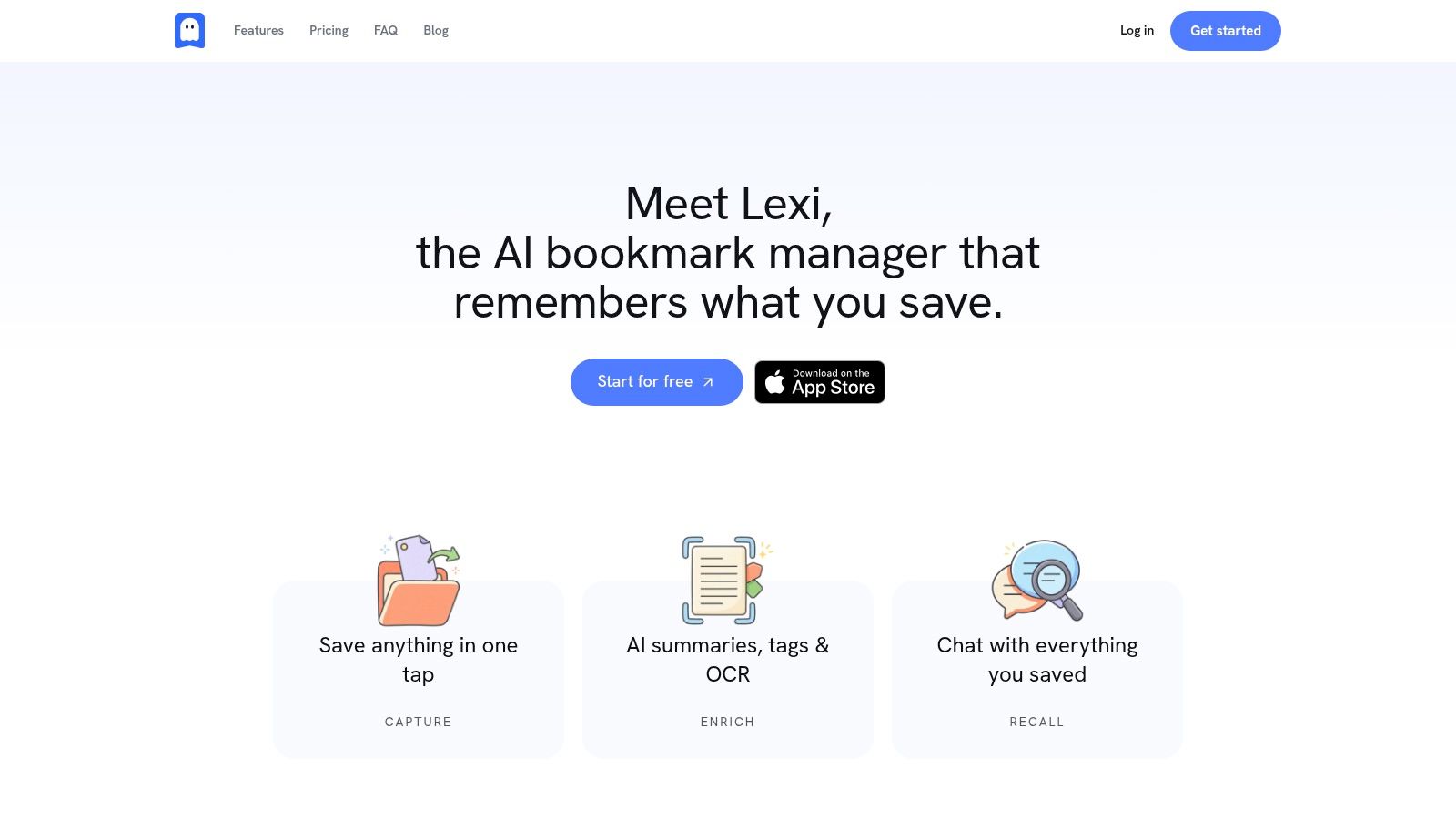
In Sensefold, the first pass is automatic: save a PDF and you get a structured summary, tags, and a searchable copy without writing a prompt at all. When you need a specific angle — a different audience, a topic-only extraction — you ask follow-up questions in the document's chat, and each answer cites the saved item it drew from. (Pinning answers to the exact source page is on our roadmap. Saved summary templates you define once and apply automatically to the documents you choose — every research paper formatted the same way, say — are on our roadmap.)
Verify against the source
A usable PDF summary survives contact with the source. If it falls apart the moment you check a table or a conclusion paragraph, it didn't save time — it postponed the reading.
Don't verify every line with equal intensity. Check what would cause a bad decision if it were wrong: figures, dates, named entities, quoted language, recommendations, and any statement that turns a cautious source into a confident takeaway. The more actionable the sentence, the closer it needs to stay to the PDF.
A fast review pass catches the common failures:
- Compression errors — the summary drops qualifiers like "may," "under these conditions," or "in this sample."
- Quote drift — the wording looks exact, but the source says something narrower.
- Table and footnote misses — basic summarizers handle body text better than dense tables and notes.
- Missing exceptions — legal, policy, and technical PDFs often put the real constraints after the main argument.
This is where keeping the source attached pays off. If a summary says "the report found…," you want the page number or section title sitting right next to the claim, so checking it is a quick lookup instead of re-searching a 70-page file. In Sensefold, each saved document is chunked with its page numbers and section headings preserved, so search can take you to the right page and a chat answer cites which saved item it drew from. (Pinning each claim to its exact page — and one-tap jump from a citation straight to the page — are on our roadmap, the same idea as the clickable timestamps in Sensefold's video summaries.)
For more on why source-attached notes beat free-floating ones, see source citations in an AI bookmark manager.
Privacy and platform
Before uploading, ask the question most guides skip: should this file go to a third-party service at all? If the PDF holds personal, financial, legal, medical, or confidential business information, treat summarization as a data-handling decision first. Check data retention, whether uploads train models, whether you can delete files and summaries, and who can see the document. Convenience isn't a privacy policy.
A trustworthy tool also tells you exactly which services touch your files. Sensefold, for example, publishes its full list of subprocessors, so you can see every vendor in the path — from the parser that reads the PDF to the model that summarizes it — before you ever upload one.
Your device shapes the workflow too:
- Web — browser tools and extensions are quickest when the file is already on your desktop or your reading starts online.
- iPhone — the share sheet is the shortcut that matters. A PDF from Mail, Files, or Safari can go straight into a capture app instead of being downloaded, renamed, and re-uploaded later.
- Mac — Preview makes a first manual skim easy; hand the AI only the condensation and restructuring.
Sensefold fits this by capturing from where you already are — drag-and-drop or paste on the web, the share sheet on iPhone — so the file lands in one place with its summary instead of in a one-off chat you'll lose tomorrow.
Frequently asked questions
How do I summarize a PDF for free? For a text-based PDF, a free AI chatbot or a built-in browser tool can produce a usable brief — paste or upload the file and give it a specific prompt (audience, objective, format). Watch two things: free tools often cap file size or page count, and "free" usually means your document is processed on someone else's servers, so it's a poor fit for anything confidential.
How do I summarize a scanned PDF? A scanned PDF is really a stack of images, so a summarizer sees nothing until the text is recognized. Run OCR first — many capture tools (Sensefold included) do this automatically on upload, which is the easy path. If your tool doesn't, OCR the file with a dedicated utility, then summarize the resulting text.
How do I summarize a very long PDF? Don't paste 100+ pages in and ask for one answer — you'll get omissions. Summarize in layers: break the document into sections, summarize each, then condense those into a top-level brief, keeping page or section labels attached. And check your tool's limits up front; most have a page or file-size ceiling, so a 500-page report may need splitting regardless.
Is it safe to upload confidential PDFs to an AI summarizer? Treat it as a data-handling decision, not just a productivity one. Before uploading, check the service's data retention, whether uploads are used to train models, whether you can delete files and summaries, and who can see the document. For sensitive legal, medical, or financial files, prefer a tool with a clear privacy policy over a free one-off summarizer.
Can I summarize a PDF on my iPhone? Yes. The fastest route is the share sheet: from Mail, Files, or Safari, send the PDF straight into a capture or summarizing app instead of downloading, renaming, and re-uploading it later.
If you want a cleaner way to save PDFs, get summaries automatically, and search across everything you've collected in one private knowledge hub, try Sensefold. It's built for people who don't just read documents — they collect them, compare them, and need to find the important part again later. If your real problem isn't one PDF but a growing backlog, Sensefold's overview of the best read-it-later apps is a useful next read.